You can automatically register a new customer for a webinar you have created with Webinar Ignition.
Step 1: Login to the WordPress installation where you installed Webinar Ignition
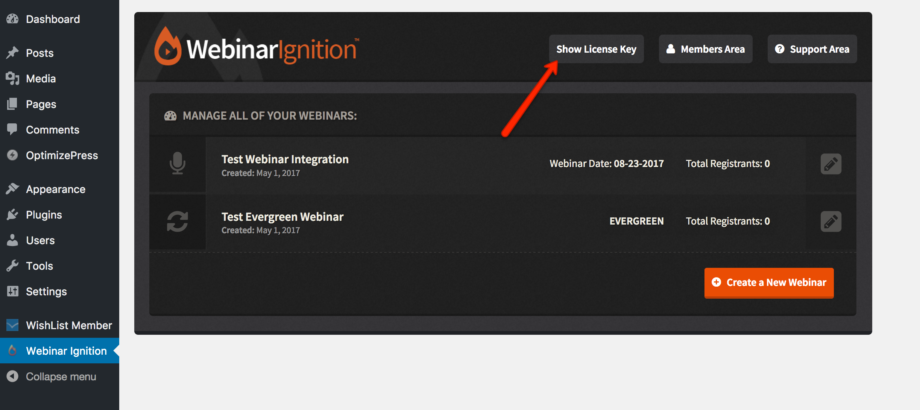
Step 2: Click on Webinar Ignition, then click “Show License Key”.
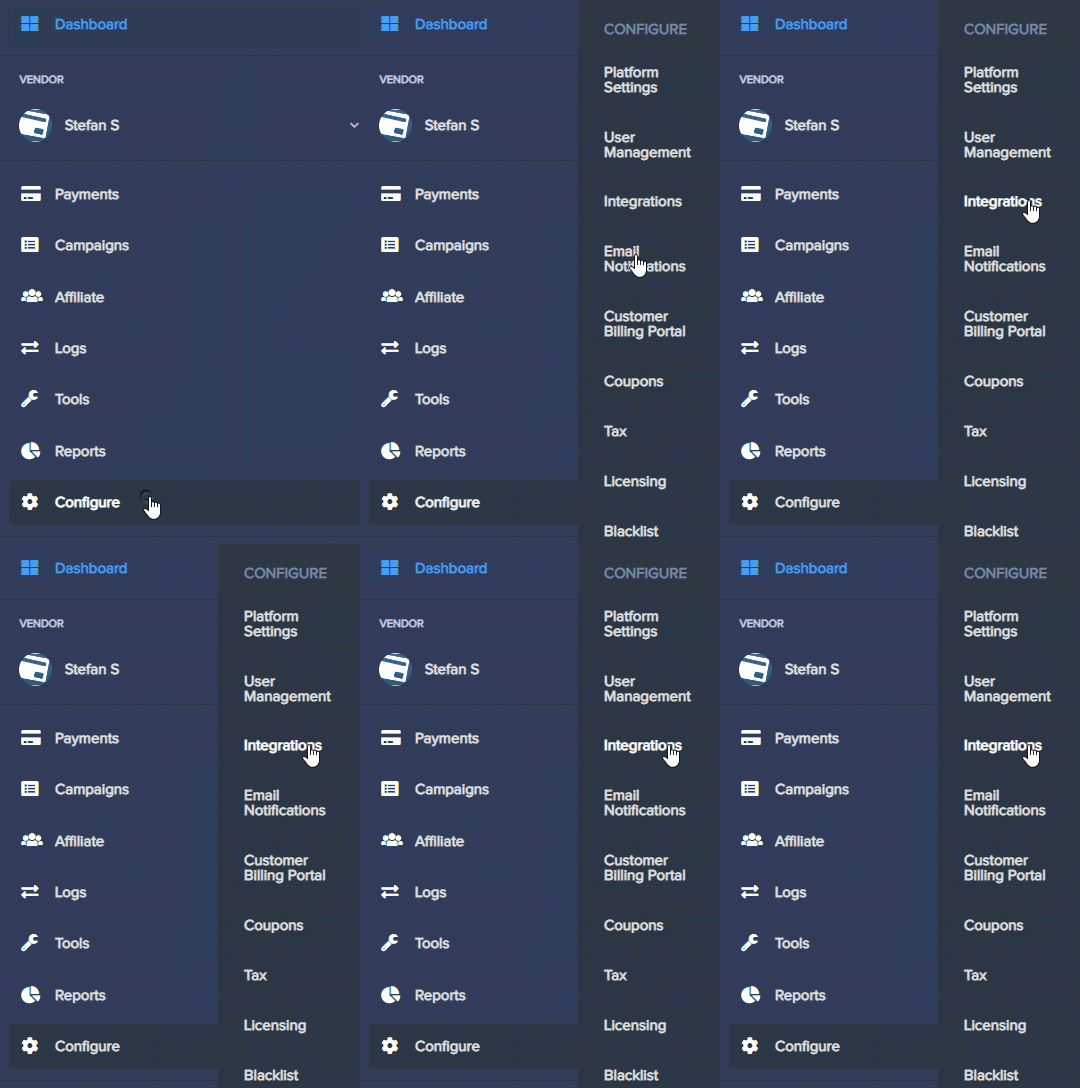
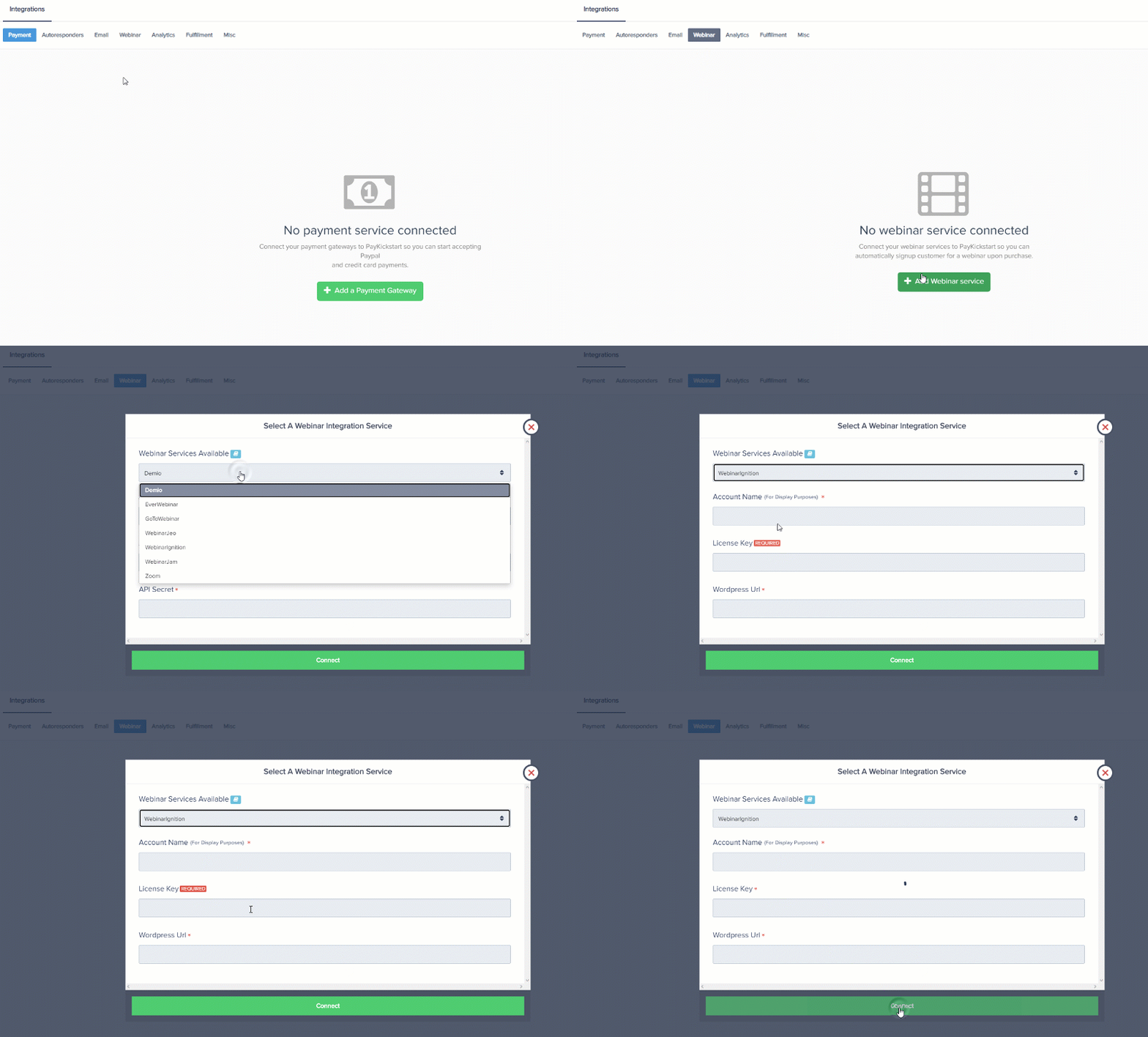
Step 3: Inside PayKickstart, click on Configure and click “Integrations”.
Then click on the sub-navigation “Webinars” and click the “Add Integration” button.
Select Webinar Ignition from the dropdown, give it a display name and enter the License Key provided to you from Webinar Ignition.
Please Note: In order for the integration events to trigger, you would need to make sure your integration is set to Default (Primary) within your Configure > Integrations section.
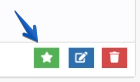
If you are adding the integration for the first time, the integration would be set to Default automatically.
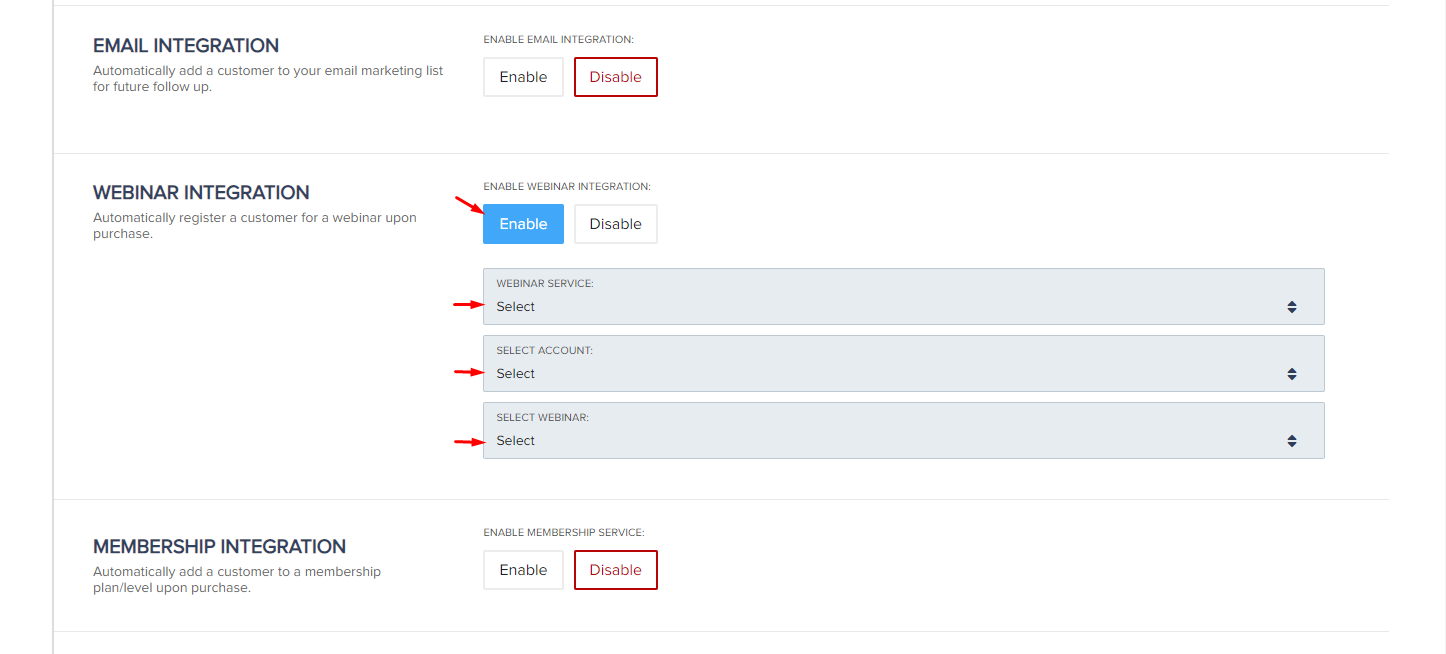
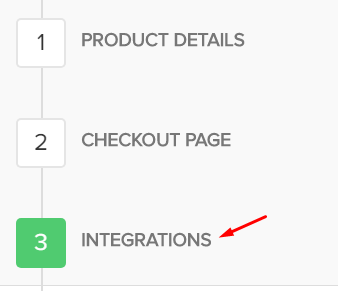
Step 4: On the Edit Product screen, go to step 3 “Integrations”.

Select which webinar a customer should be added to upon purchase.